
UploadingState component in FilePizza codebase.
In this article, we will review the UploadingState component in FilePizza codebase.
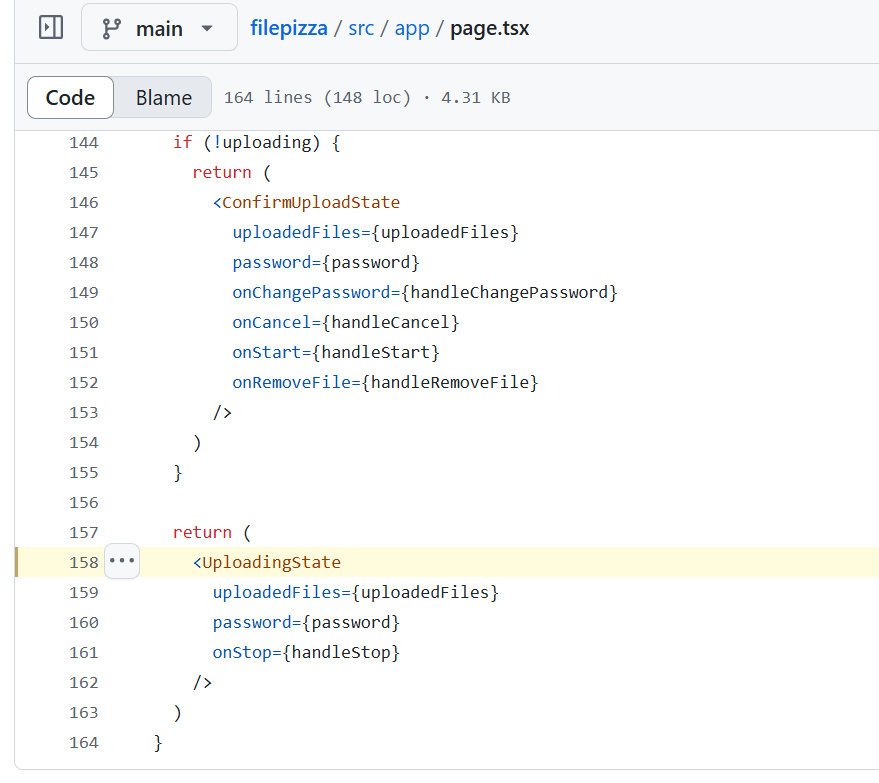
UploadingState component is returned in app/page.tsx and this is the component you would see when you have already uploaded a file.
UploadingState
function UploadingState({
  uploadedFiles,
  password,
  onStop,
}: {
  uploadedFiles: UploadedFile[]
  password: string
  onStop: () => void
}): JSX.Element {
  const fileListData = useUploaderFileListData(uploadedFiles)
  return (
    <PageWrapper>
      <TitleText>
        You are uploading {pluralize(uploadedFiles.length, 'file', 'files')}.
      </TitleText>
      <UploadFileList files={fileListData} />
      <WebRTCPeerProvider>
        <Uploader files={uploadedFiles} password={password} onStop={onStop} />
      </WebRTCPeerProvider>
    </PageWrapper>
  )
}
This above code can be found at line 87 in app/page.tsx.
PageWrapper and the TitleText components are straightforward. I am curious about the UploadFileList component. Let’s find out what this is.

UploadFileList
import React, { JSX } from 'react'
import TypeBadge from './TypeBadge'

type UploadedFileLike = {
  fileName?: string
  type: string
}

export default function UploadFileList({
  files,
  onRemove,
}: {
  files: UploadedFileLike[]
  onRemove?: (index: number) => void
}): JSX.Element {
  const items = files.map((f: UploadedFileLike, i: number) => (
    <div
      key={f.fileName}
      className={`w-full border-b border-stone-300 dark:border-stone-700 last:border-0`}
    >
      <div className="flex justify-between items-center py-2 pl-3 pr-2">
        <p className="truncate text-sm font-medium text-stone-800 dark:text-stone-200">
          {f.fileName}
        </p>
        <div className="flex items-center">
          <TypeBadge type={f.type} />
          {onRemove && (
            <button
              onClick={() => onRemove?.(i)}
              className="text-stone-500 hover:text-stone-700 dark:text-stone-400 dark:hover:text-stone-200 focus:outline-none pl-3 pr-1"
            >
              ✕
            </button>
          )}
        </div>
      </div>
    </div>
  ))

  return (
    <div className="w-full border border-stone-300 dark:border-stone-700 rounded-md shadow-sm dark:shadow-sm-dark bg-white dark:bg-stone-800">
      {items}
    </div>
  )
}
UploadFileList can be in components/UploadFileList.tsx. This component accepts files and onRemove as its props.
WebRTCProvider
I have already talked about what WebRTCProvider is in one of my previous articles. Check it out.
Uploader
'use client'

import React, { JSX, useCallback, useEffect } from 'react'
import { UploadedFile, UploaderConnectionStatus } from '../types'
import { useWebRTCPeer } from './WebRTCProvider'
import QRCode from 'react-qr-code'
import Loading from './Loading'
import StopButton from './StopButton'
import { useUploaderChannel } from '../hooks/useUploaderChannel'
import { useUploaderConnections } from '../hooks/useUploaderConnections'
import { CopyableInput } from './CopyableInput'
import { ConnectionListItem } from './ConnectionListItem'
import { ErrorMessage } from './ErrorMessage'
import { setRotating } from '../hooks/useRotatingSpinner'

const QR_CODE_SIZE = 128

export default function Uploader({
  files,
  password,
  onStop,
}: {
  files: UploadedFile[]
  password: string
  onStop: () => void
}): JSX.Element {
  const { peer, stop } = useWebRTCPeer()
  const { isLoading, error, longSlug, shortSlug, longURL, shortURL } =
    useUploaderChannel(peer.id)
  const connections = useUploaderConnections(peer, files, password)

  const handleStop = useCallback(() => {
    stop()
    onStop()
  }, [stop, onStop])

  const activeDownloaders = connections.filter(
    (conn) => conn.status === UploaderConnectionStatus.Uploading,
  ).length

  useEffect(() => {
    setRotating(activeDownloaders > 0)
  }, [activeDownloaders])

  if (isLoading || !longSlug || !shortSlug) {
    return <Loading text="Creating channel..." />
  }

  if (error) {
    return <ErrorMessage message={error.message} />
  }

  return (
    <>
      <div className="flex w-full items-center">
        <div className="flex-none mr-4">
          <QRCode value={shortURL ?? ''} size={QR_CODE_SIZE} />
        </div>
        <div className="flex-auto flex flex-col justify-center space-y-2">
          <CopyableInput label="Long URL" value={longURL ?? ''} />
          <CopyableInput label="Short URL" value={shortURL ?? ''} />
        </div>
      </div>
      <div className="mt-6 pt-4 border-t border-stone-200 dark:border-stone-700 w-full">
        <div className="flex justify-between items-center mb-2">
          <h2 className="text-lg font-semibold text-stone-400 dark:text-stone-200">
            {activeDownloaders} Downloading, {connections.length} Total
          </h2>
          <StopButton onClick={handleStop} />
        </div>
        {connections.map((conn, i) => (
          <ConnectionListItem key={i} conn={conn} />
        ))}
      </div>
    </>
  )
}
Uploader component is responsible for showing QR code and the long/short URLs.
About me:
Hey, my name is Ramu Narasinga. I study large open-source projects and create content about their codebase architecture and best practices, sharing it through articles, videos.
I am open to work on interesting projects. Send me an email at ramu.narasinga@gmail.com
My Github — https://github.com/ramu-narasinga
My website — https://ramunarasinga.com
My Youtube channel — https://www.youtube.com/@ramu-narasinga
Learning platform — https://thinkthroo.com
Codebase Architecture — https://app.thinkthroo.com/architecture
Best practices — https://app.thinkthroo.com/best-practices
Production-grade projects — https://app.thinkthroo.com/production-grade-projects